
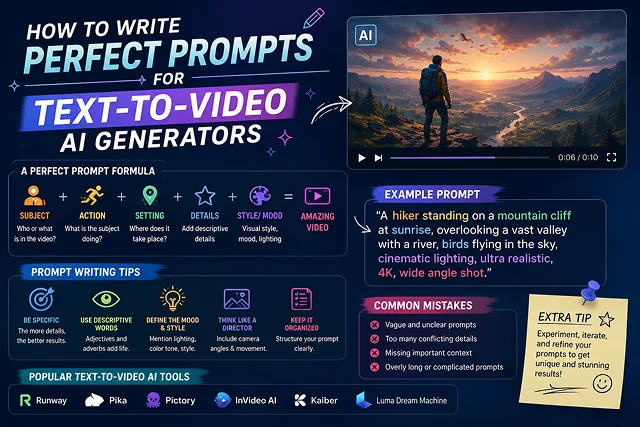
Prompting a Text-to-Video (T2V) AI generator is fundamentally different from writing a text prompt for image generation. While static image generators process spatial details (X, Y coordinates), video models operate on Diffusion Transformers (DiTs) that process spatial data alongside a temporal axis (ZTime dimension).
When you give a video generator (such as Google Veo, Kling AI, Sora, or Runway Gen-4) an vague or overly cluttered prompt, the temporal attention layer struggles to calculate pixel movements, leading to morphing limbs, unstable backgrounds, and visual artifacts.
Above-the-Fold Feature Matrix: Basic Prompts vs. Masterclass Architecture
Prompt Engineering Matrix · Basic Prompting vs. Predictable Masterclass Renders
| Prompt Element | Basic Prompting (High Render Failure) | Masterclass Video Architecture (Predictable Renders) |
|---|---|---|
| Subject Definition | Vague terms ("A man standing") | Anchored Features: "A 35-year-old male architect with short grey hair, wearing a navy blazer" |
| Motion Physics | Unanchored actions ("Running fast") | Explicit Velocity: "Sprinting through a rain-slicked neon street, water splashing off boots" |
| Camera Guidance | Generic buzzwords ("Cinematic shot") | Vector Trajectory: "Low-angle 35mm tracking pan, moving backward at ground level" |
| Lighting & Mood | Fluff adjectives ("Beautiful lighting") | Volumetric Cues: "Chiaroscuro lighting, warm tungsten key light casting long soft shadows" |
| Audio Layering | Mute or unguided background | Viseme & Foley Mapping: "Dialogue: 'We made it.' Audio: rain on pavement, distant thunder" |
1. The "One Micro-Action " Rule: Preventing Motion Jitter
The greatest blunder that newbies make is instructing the AI to do more than one task within one short five-second reel (e.g. "A man stands up, walks across the room, opens a door and takes his seat".) This overloads the model's temporal attention layer.
❌ WRONG (Complex Multi-Action Prompt):
- "Chef slices onions, turns to stir a pot, laughs, and pours wine."
- (Result: Hands morph into the knife, background warps, pixels melt)
✅ CORRECT (Single Micro-Action per Shot):
- Medium-close-up shot using 50mm. A chef in white apron stirring a steaming copper pot very slowly.
- There is a cozy kitchen backdrop in the background with a warm overhead light and shot at 24 FPS.
Motion Intensity Mapping:
- For Low Motion (Dialogue, Portraits): Set motion sliders to 0.2 – 0.35 to prevent subtle facial features from distorting.
- For High Motion (Action, Car Chases): Set motion sliders to 0.5 – 0.7 and use explicit camera tracking verbs like "tracking camera follows closely parallel to motion."
2. Global Style Anchors & Eliminating "Visual Drift"
When creating a multi-shot video, characters or lighting can change drastically between scenes. Fight visual Drift by setting a global style anchor a single, pre-determined sequence of camera and lighting terms, which is added to the beginning of your project prompt:
- [GLOBAL ANCHOR]: "Shot on 35mm lens, 24fps, cinematic 5600K daylighting, teal-and-orange color grade."
- Shot 1: "[GLOBAL ANCHOR] Wide establishing tracking shot of a programmer walking into a neon office."
- Shot 2: "[GLOBAL ANCHOR] Close-up shot of the programmer typing at a glowing glass terminal."
3. Production Scripting Pipeline
Follow this 5-step sequence to go from an idea to a fully rendered visual master:
1. Draft Dual-Track Audio/Visual Prompts
- Draft your voiceover script. Divide your video into 3-to-5-second beats and write a dedicated prompt using the 6-Part Universal Architecture for each beat.
2. Synthesize Audio Stems & Pacing
- Generate your narration using a neural TTS platform (like ElevenLabs). Remove silent gaps longer than 0.4 seconds, export the clean 24-bit WAV file, and map your visual prompts directly to your audio markers.
3. Execute Image-to-Video (I2V) Rendering
- For maximum character consistency, generate a single static image first using an image generator (like Midjourney or FLUX.1). Ingest that image into your video model (Kling 3.0 or Veo) using Image-to-Video (I2V) mode, writing your text prompt strictly for camera vectors.
4. Timeline Assembly, Sidechain Ducking, & Captions
- Import your visual clips and voiceover stem into your editor (such as CapCut Desktop or DaVinci Resolve). Trim the first and last half-second of each AI clip to remove initial acceleration glitches. Set background music to duck automatically by -18dB behind spoken dialogue.
5. Master Render & Export
- Review visual cuts across desktop and mobile viewports. Render out of 1080p Full HD (1920x1080)@30fps, as a main render file.
The 6-Part Universal Prompt Architecture
To get consistent, cinematic outputs on your first render attempt, structure your text prompts using this six-part syntax order:
| Component | Purpose | Pro Example Vocabulary |
|---|---|---|
| 1. Camera Movement | Dictates direction and speed across the timeline. |
Slow dolly-in,
360-degree orbit,
handheld tracking shot,
crane up
|
| 2. Shot Type & Framing | Establishes scale and focal length. |
85mm shallow depth of field,
extreme close-up,
wide establishing shot
|
| 3. Subject Detail | Identifies the main element (person, object, animal). |
A 35-year-old female architect in a slate-grey coat,
a vintage glass bottle
|
| 4. Micro-Action | Specifies one clear movement for the subject. |
turns head 45 degrees left,
slowly sips coffee,
glares into the lens
|
| 5. Environment | Defines background, weather, and time of day. |
inside a rain-slicked Tokyo alleyway at night,
a sunlit Scandinavian kitchen
|
| 6. Lighting & Style | Controls atmospheric color and film stock. |
3200K warm tungsten key light,
cinematic 35mm film grain,
volumetric haze
|
Request A Custom AI Video
Tell us what you're trying to create and we'll point you to the right tool — or help you set it up.
4. Deep Mechanics: How DiTs Parse Visual Prompts
Advanced video engines such as Kling 3.0, Google Veo 3.1, Sora 2 and Wan 2.7 utilize a process known as dual-stage neural encoding to transform text prompts into videos:
[Text prompt] ➔ [T5-XXL / CLIP Encoder]➔ [Token embedding]
│
▼
[4K Video Output] [3D VAE Latent Decoder] [Spatial-Temporal Attention Transformer]
1. Spatial Attention (X, Y Coordinates)
- Function: Maps geometric shapes, textures, lighting vectors, and color spaces across individual frames.
- Token Weighting Rule: Words at the beginning of a prompt carry higher weight in the text encoder. Placing camera framing and primary subject details first ensures the model prioritizes them during spatial latent noise reduction.
2. Temporal Attention (Z / Time Axis)
- Function: Calculates how pixels shift across frame time steps (T).
- Vector Conflict: Verbs representing multi-directional physical actions (e.g., "turns around and runs away") force temporal attention layers to calculate conflicting vectors simultaneously. This breaks frame continuity, causing pixel tearing, distorted limbs, and melting backgrounds.
5. Resolving Prompt Failures: Technical Remedies
1. "Melting Pixels" and Character Warping
- Cause: Motion scale is set too high, or the prompt includes conflicting verbs.
- Fix: Lower the motion scale to 0.3. Replace complex verbs with single micro-actions (e.g., replace "person walks across room and sits" with "medium tracking shot of person walking forward").
2. Visual Drift Across Scene Cuts
- Cause: The model produces a different random latent seed for every scene, thus modifying character characteristics and lighting.
- Fix: Employ an Image-to-Video (I2V) workflow. Create one single stationary keyframe first, put it into I2V as a reference, and draft your prompt related to camera action (e.g. "slide in slowly along the Z-axis, keep the background illumination constant").
3. Flat, Uninspired Lighting
- Cause: Relying on generic style terms like "photorealistic" or "4K HD".
- Fix: Replace generic buzzwords with explicit physical lighting parameters: "3200K warm tungsten key light, volumetric haze, 85mm lens with shallow depth of field, high contrast ratio."
Mastering Text-to-Video Prompting
Learn the exact prompt blueprints, camera motion controls, lighting parameters, and artifact prevention techniques.
Follow the 5-Core Layer Formula: [Main Subject Details] + [Specific Action/Motion] + [Camera Trajectory & Optics] + [Lighting & Atmospheric Conditions] + [Environment & Style Specs]. Ordering your variables this way helps the neural network's spatial attention layers lock down primary subjects before processing camera motion and environmental lighting.
Replace generic phrases like "cool camera angle" or "move closer" with real-world cinematic terms. Use specific directives such as "slow tracking dolly-in," "low-angle pedestal up," "360-degree orbital pan," or "35mm lens with shallow depth of field." Specifying focal length and optical moves guides the AI model's motion vectors to simulate natural camera physics.
Modern Diffusion Transformers (DiTs) process negative prompts poorly compared to legacy image engines, often accidentally generating the exact elements you tried to exclude. Instead of negative phrasing like "no blur, no warping," phrase instructions positively (e.g., "tack-sharp focus throughout frame, clear edge fidelity, steady fluid motion tracking").
Video generators read literal physical shapes rather than subtext or emotion. Writing "show a man feeling overwhelmed by time" often causes the AI to literally spawn floating clocks around him. Always translate abstract ideas into visible physical actions and environmental lighting: "A man in a suit staring intently at his wristwatch, fast motion blur of crowd passing around him in a train station, high contrast lighting."
The ideal prompt length for modern video transformers is 50 to 100 words. Prompts under 20 words force the AI to fill in the blanks with random choices, while prompts over 150 words can cause "token bleeding," where the model ignores secondary details or gets confused by competing directives.
Specify light direction, color temperature, and atmospheric elements explicitly. Instead of writing "good lighting," use detailed descriptions like: "Warm golden hour side-lighting, 3200K warm tungsten glow, subtle atmospheric haze, volumetric light rays beaming through glass, teal and orange color grade."
Visual tearing happens when you request fast or multiple complex actions in a short 5-second window. To keep your renders clean, set your motion intensity slider to a moderate level (3 to 5 out of 10) and focus on describing one single, continuous movement (e.g., "subject walks steadily toward the camera") per render pass.
Use Temporal Pacing Anchors in your text prompt. Modern video models parse sequential instructions effectively when formatted like: "First 2 seconds: subject sits silently at desk. Next 3 seconds: subject looks up slowly toward camera and smiles." This simple timeline structure helps the diffusion model plan frame motion smoothly.
Create a Master Character Descriptor Block. Define distinct, immutable physical traits (e.g., "28-year-old female pilot, short blonde bob hair, wearing a brown leather flight jacket and silver drop earrings"). Copy and paste this exact descriptor string verbatim into every scene prompt across your project to minimize visual drift.
Follow this proven 3-Step Prompt Engineering Pipeline: First, run rapid 480p low-resolution draft previews to check camera trajectories, motion speed, and timing. Second, refine descriptive adjectives and adjust motion sliders to fix any visual artifacts. Third, lock your prompt parameters and render the final clip at full resolution before running it through an AI upscaler for a crisp 4K finish.
Ready to try Skora AI?
Transform your ideas into cinematic video in seconds.