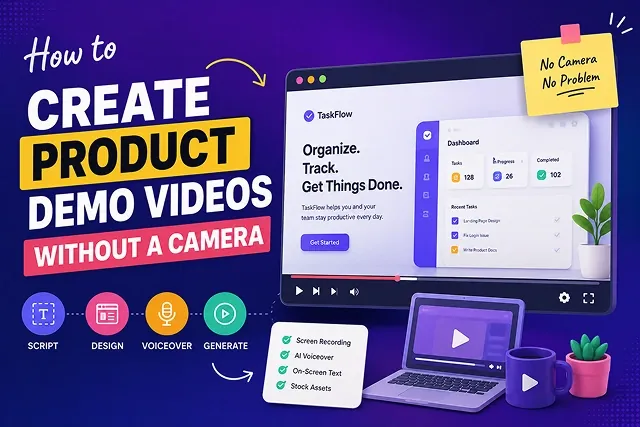
Creating a high-quality product demo video does not need costly filming equipment, studio lighting, and a camera-averse founder on screen to show it. Instead, by making use of some high-definition screencasts, interactive user interface mockups, AI animation software, and the neural TTS technology, software start-ups, independent developers, as well as marketing teams can create effective product demos in just a few hours.
Below, you will find a ready-to-use blueprint of the process that one has to go through to create camera-free product demonstrations.
Above-the-Fold Breakdown: Camera Rigs vs. Camera-Free AI Pipelines
Production Efficiency Matrix · Physical Camera Shoots vs. Cloud AI Demo Workflows
| Production Metric | Traditional Physical Camera Shoot | Camera-Free AI Demo Pipeline |
|---|---|---|
| Turnaround Time | 2 to 4 Weeks (Studio booking, filming, editing) | 20 to 40 Minutes (Browser-based rendering) |
| Equipment & Cost | $2,000 – $8,000+ (Cameras, lighting, crew, talent) | $0.00 – $30.00/mo (Web tools & open engines) |
| Presenter Overhead | Hiring actors & scheduling studio time | Photorealistic AI talking presenters |
| 3D Asset Generation | Weeks of manual CAD/3D modeling | Text-to-3D quad mesh generation in minutes |
| Global Localization | Re-filming or paying foreign dubbing artists | Instant voice cloning in 50+ languages |
1. The 5-Step Camera-Free Production Pipeline
Follow this sequence to produce a camera-free product demo:
1. Draft a Problem-Solution Script
Write a concise script focused on a single core problem. Structure your narrative:
- The Hook (0–5s): State the primary frustration your software solves.
- The Workflow (5–40s): Walk through 2 to 3 key features using clear UI steps.
- The Call to Action (40–60s): Direct the user to start a free trial or visit your landing page.
2. Capture Clean UI Screen Recordings
- Open your software interface. Make sure notifications are turned off from the desktop application and browser bookmarks hidden and your display set at 1080p Full HD or 4K. Record your screen using tools like Screen Studio or ngram to capture cursor clicks and menu interactions smoothly.
3. Synthesize Voiceover & Neural Audio
- Paste your finalized script into a neural voice generator (such as ElevenLabs or Descript). Select a clean, professional voice profile, set speech stability to 45% for natural inflection, and export the audio stem.
4. Apply Auto-Zoom, Cursor Highlights, & Captions
Import your screen capture and voiceover into your editor. Add visual polish:
- Smart Zoom: Apply automatic 150% zooms on specific UI buttons or input fields when they are clicked.
- Cursor Smoothing: Add a yellow highlight halo around the cursor track.
- Kinetic Captions: Position high-contrast auto-captions centered in the middle third of the frame.
5. Apply Sidechain Ducking & Export Master
- Set the background music to dip by -18dB beneath the voiceover stem. Re-assess the pacing, and then export as 1080p Full HD (1920 x 1080) if for website embedding, or 9:16 (vertical) if for use on mobile.
2. Maintaining Viewer Engagement Without a Host
Without a live human host on camera, visual static can cause audience retention to drop. Apply these production techniques:
- Avoid Longer Pauses: Remove longer than half a second pauses in your voice recording.
- Utilize Motion Vector Cutaway: Stay away from the idle dashboard for playing more than four seconds. Add pan and zoom keyframes to the interface.
- Use Callout Elements: A combination ofanimated indicators like arrows, boxes with light effect, and progressive counters.
Choosing Your Camera-Free Demo Production Path
The best production path depends on whether your product is a digital software solution, a web app, or a physical product idea:
| Production Method | Key Tools Used | Best For | Primary Advantage |
|---|---|---|---|
| 1. UI Screen Capture + Auto-Zoom | Screen Studio, Loom, ngram, OBS Studio | SaaS platforms, web apps, & browser dashboards. | High authenticity; shows the actual software interface working in real time. |
| 2. AI Presenter Avatar + Script | Synthesia (Express-2), HeyGen, Colossyan | Corporate onboarding, sales demos, & global training. | Adds a "human" face without cameras or studio shoots. |
| 3. Interactive Slides & UI Mockups | Figma, Canva, PowerPoint to MP4 | Early-stage prototypes & mobile app concepts. | Easy to update as designs change rapidly. |
| 4. Generative 3D/AI Video Assets | Runway Gen-4, Luma Ray 3.2, Poko Motion | Physical products, hardware, & high-end B-roll. | Recreates cinematic environments without physical shoots. |
Request A Custom AI Video
Tell us what you're trying to create and we'll point you to the right tool — or help you set it up.
3. Under the Hood: UI Motion & Cursor Smoothing Algorithms
Raw screen recordings often look jittery due to erratic mouse movements and abrupt browser jumps. Modern screen recording engines (like Screen Studio) run capture files through a 3-step spatial smoothing pipeline:
[Raw Screen Capture Data] ➔ [Bezier Curve Motion Pass] ➔ [Temporal Auto-Zoom Focus] ➔ [4K Master Output]
- Inertial Path Interpolation: The software strips raw, jagged mouse coordinate points (X, Y) and applies a cubic Bezier Curve Algorithm. This converts sudden cursor movements into smooth, cinematic camera glides.
- Contextualized Identification of User Engagement: This implies that the engine is capable to track every activity performed by the user through their behavior—whether it is pressing a primary button, entering text in an input box, or expanding a dropdown list.
- Adaptive Zooming Effect: Whenever an engagement is detected, the canvas calculates a 1.2x to 1.5x zooming into the coordinates of the action.
4. Resolving Common Camera-Free Demo Production Errors
Avoid these common visual and audio pitfalls when producing camera-free walkthroughs:
- Removing the background desktop noise: Ensure to load into a fresh browser profile with hidden desktop notifications, bookmarks, and extensions. Strictly adhere to 1920 x 1080 (16:9) or 2560 x 1440 (16:9) monitor resolutions to avoid letterboxing.
- Fixing Synthetic Voice Pacing: Pacing Synthetic Audio To correct pace problems in the synthetic audio tracks (these often have no Natural Pauses between UI transitions), insert explicitly SSML pause tags (break time="400ms"/) around important points in your script that coincide with the visual change and the following line of dialogue.
- Voiceover Frequency LEVEL 8: High Pass a filter at 80Hz to remove low end from mic pops and then boost 2KHz – 4 KHz to get your speak voice to sit in front of music.
5. High-Converting SaaS Product Demo Scripts
Template: High-Converting SaaS Walkthrough (Runtime: 60 Seconds)
[00:00 - 00:05] THE HOOK (Problem-Focused)
Audio: "Managing multi-channel ad budgets manually wastes up to 10 hours every week."
Visual: 150% Auto-zoom on a cluttered, red-heavy analytics dashboard. Cursor glides ...

[00:05 - 00:25] THE WORKFLOW (Core Feature 1)
Audio: "With AutoBudget AI, you connect your accounts in a single click."
Visual: Screen pan to top-right navigation. Highlight ring pulses around "Connect API".

[00:25 - 00:45] THE PROOF (Core Feature 2 & Value Metric)
Audio: "Our smart algorithms automatically reallocate spend to your highest-performing ..."
Visual: Split-view UI zoom. Left side highlights incoming ROI graph trending upward ...

[00:45 - 01:00] THE CALL TO ACTION (Friction-Free CTA)
Audio: "Stop burning ad budget. Start your 14-day free trial today at AutoBudget.io."
Visual: Auto-zoom backs out to full 1080p hero workspace. A clean, high-contrast modal ...
Camera-Free Product Demos
Master screen capture workflows, AI presenters, UI mockups, and synthetic voice localization.
Camera-free product demos replace physical studio shoots with Digital Screen Capture, Animated UI Mockups, and AI Presenters. Creators capture software interfaces using screen recorders, apply smooth cursor-tracking animations, generate a photorealistic digital presenter host, and layer on an AI neural voiceover to explain key product features clearly.
A streamlined stack includes: Screen Studio or Loom (for automated smooth cursor zooming and screen recording), ChatGPT or Claude (for writing structured demo scripts), HeyGen or Synthesia (for generating photorealistic digital avatars to host the video), ElevenLabs (for neural voice synthesis), and CapCut or Premiere Pro (for final editing and auto-captions).
Platforms like HeyGen or Synthesia allow you to select a digital avatar presenter or create a custom clone of team members. When you paste your script into the platform, the AI generates a talking-head presenter with realistic lip synchronization, eye blinks, and natural gestures—placing them neatly in a corner bubble overlay or a split-screen layout beside your software interface.
For physical products, use 3D CAD renders, 360-degree product mockups, and AI Image-to-Video generators. Take static e-commerce photographs or CAD models, pass them into AI video engines (like Kling or Luma) to generate smooth 3D rotational camera passes, and overlay dynamic callout lines highlighting specs, dimensions, and material details.
Raw screen captures can look flat and hard to follow. Transform them by using smart recorders (like Screen Studio) that automatically apply curved device frames, blurred background gradients, smooth mouse cursor tracking, and automatic camera zooms whenever clicks occur on screen. This guides the viewer's eye directly to key UI actions.
Follow the Problem-Feature-Benefit-CTA Blueprint: Open in the first 3 seconds with the core user friction point (e.g., "Tired of spending hours managing client invoices?"), show the exact software feature in action, explain the time/cost savings for the user, and conclude with a clear call to action directing viewers to start a free trial.
When software interfaces update, traditional studio videos require hiring actors again, setting up camera lighting, and re-filming entire scenes. With a camera-free AI workflow, you simply record a 5-second screen capture of the new UI feature and update the text script line. The AI voice and avatar regenerate instantly, allowing you to update product videos in minutes.
Because your demo uses screen captures and synthetic voice tracks, global localization is simple. Use cross-lingual AI platforms (like ElevenLabs or Rask AI) to translate the script, generate native voiceovers in foreign languages, and automatically re-sync the presenter avatar's lip movements—enabling global distribution without filming separate international campaigns.
Up to 70% of viewers watch web and social videos with sound muted. Kinetic captions and pointer callouts reinforce key product features visually. Highlighting key metric improvements (e.g., "Saves 10 Hours Weekly") in high-contrast text directly on screen ensures your value proposition reaches sound-off viewers clearly.
Follow this proven 3-Step Camera-Free Production Blueprint: First, record your software interface walkthrough using Screen Studio to auto-apply cursor zooms and background frames. Second, generate your narration script in ElevenLabs and pair it with a lip-synced avatar presenter in HeyGen. Third, assemble the screen recording and presenter avatar in CapCut, layer background music with audio ducking, add auto-captions, and export your polished 1080p master file.
Ready to try Skora AI?
Transform your ideas into cinematic video in seconds.