
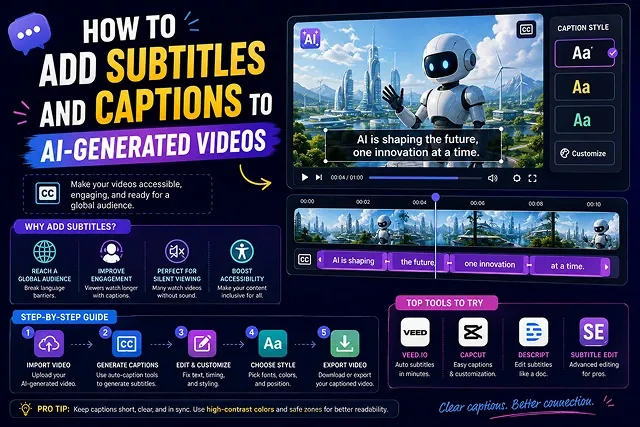
Around 80% of short-form video watchers prefer to view their videos on their mobile devices with the sound turned off. Therefore, using appropriate, synchronized subtitles in your AI-generated video is key in order to keep the attention of viewers, increase your content's search rankings, and make your videos inclusive.
This section gives you a practical guide for generating, styling, and synchronizing the subtitles to your AI videos across all major platforms.
Above-the-Fold Breakdown: Subtitle & Caption Workflows
Caption Pipeline Matrix · Kinetic Captioners vs. NLE & Sidecar Workflows
| Method / Tool Type | Primary Output Format | Turnaround Speed | Best Target Use Case |
|---|---|---|---|
| Kinetic AI Auto-Captioners (CapCut, Submagic, AutoCaption) | Hardcoded (Burned-in) dynamic animations with active word highlights | Instant (Under 30s) | TikToks, YouTube Shorts, Reels, viral ad hooks |
| NLE Integrated Engines (Premiere Pro, DaVinci Resolve) | Embedded subtitle tracks & custom typography templates | 2 to 5 minutes | Long-form YouTube, brand films, & broadcast video |
| Closed Caption Generators (Sonix, Descript) | Sidecar Files (.SRT, .VTT) for platform toggling | 1 to 2 minutes | E-learning modules, webinars, & multi-language SEO |
| Manual SRT Timing | Plain text sidecar tracks | 10 to 30 minutes | Custom legal/medical video requiring exact manual review |
1. The 5-Step Subtitle & Captioning Workflow
To auto-generate your subtitles through automated captioning for your videos, follow these five steps:
1. Export Audio Files from Text-to-Speech Technology
- Create your audio files in one of the text-to-speech applications available on the market today and keep audio files free of long spaces during speeches.
2. Run Auto Speech Recognition (ASR)
- Import your master video and audio into your caption tool Cap CapCaput, Descript, or Whisper. Run the auto-transcription process so that the tool converts the speech to time-coded segments.
3. Audit Spelling, Proper Names, & Abbreviations
- Examine the transcribed content carefully line by line and make necessary amendments regarding specific domain terms, product names, and errors made by phonetic speech recognition (for example, “SaaS” should not be written as “sauce”).
4. Apply Safe Zone Margin Alignment
- Put all caption text in Middle-Third Safe Zone (35% to 65% of frame in the Y-direction). Line breaks must be short (max. 2 lines per screen, max. 32 to 40 characters per line).
5. Apply Dynamic Contrast & Render Master
- Add a border around text so it stands out against footage (strong outline of white text with 2px thick black border or dark shadow box). Create a MP4 with hardcoded caption text or store an. Srt sidecar.
2. Avoiding Mobile UI Trapping: Safe Margins Guide
Placing captions incorrectly on vertical (9:16) videos causes them to be hidden behind native platform interfaces:
+---------------------------------------+
|  [TOP SAFE ZONE - 15% PADDING]        | ➔ Avoid: Obscured by Search Bar / Header
+---------------------------------------+
|                                       |
|  ✅ RECOMMENDED CAPTION ZONE           | ➔ Safe Viewport: 35% to 65% Screen Height
|     (Word-by-word highlights)         |
|                                       |
+---------------------------------------+
|  [RIGHT: Likes/Share Icons]           | ➔ Avoid: Obscured by Right UI Action Rails
|  [BOTTOM: Username / Sound Info]      | ➔ Avoid: Obscured by Bottom Description & Seekbar
+---------------------------------------+
- Vertical Top Padding: Ensure that your vertical top padding space is 150px (15%) from the top.
- Vertical Bottom Padding: Ensure that your vertical top padding space is 250px (25%) from the bottom edge to avoid overlapping with handles of platforms captions and audioTitles.
- Horizontal Margin: Ensure to keep 10% side padding to avoid any overlap with action buttons on the right-side such as like, comments, and bookmarks.
Subtitles vs. Captions: Formats & Deliverables
Choosing the right subtitling method depends on your distribution channel and whether you need styled animations or raw text tracks:
| Format Type | Delivery Method | File Extension | Best For |
|---|---|---|---|
| Open (Burned-In) Captions | Hardcoded directly into video pixels. | .mp4 / .mov |
TikTok, Instagram Reels, YouTube Shorts. |
| Closed Captions (CC) | Separate time-coded metadata track. | .srt / .vtt |
Long-form YouTube, Vimeo, Web Video Players. |
| Animated Kinetic Subtitles | Word-by-word highlighted presets. | .mp4 (Rendered) |
Fast-paced talking head & faceless videos. |
Request A Custom AI Video
Tell us what you're trying to create and we'll point you to the right tool — or help you set it up.
3. Advanced SubStation Alpha (.ass) Styling Engine
When comparing .srt files, which enable only the most basic time stamps and standard text, the Advanced SubStation Alpha (.ass / .ssa) format gives you the possibility to create your own typography, positional vectors, karaoke-like highlighting, and transformations without even having to use a desktop video editing application.
- [Raw Audio file] ➔ [Faster-Whisper in audio file (words time stamps)] ➔ [Python .ASS Formatter] ➔ [FFmpeg libass Render Process] ➔ [Final Video in MP4 format]
Breakdown of Key ASS Header Parameters:
- Alignment: 2: Centers text and is anchored to the vertical Baseline dictated by MarginV.
- MarginV: 850: At 1080x1920, this creates a 850px margin at the bottom of the screen, ensuring text rests in the sweet spot middle of the screen (y = ~1070px from top) so it will be out of the path of native social overlays.
- Outline: 8 & Shadow: 12: Creates an 8px solid black border and a 12px drop shadow to ensure it’s easily readable against any background image.
- {\k(duration)}: This is how long in centiseconds (hundredths of a second) the karaoke color swing should persist for that word.
4. Headless Video Burn-In via FFmpeg (libass)r5t
Burning .ass kinetic subtitles directly into the master video to avoid re-encoding and loss of quality, with a FFmpeg compiled with libass:
ffmpeg -y -i raw_input_video.mp4 \
  -vf "ass=captions_master.ass" \
   -c:v libx264 -preset slow -crf 18 \
  -c:a copy \
  final_master_burned_video.mp4
- -vf "ass=captions_master.ass": Uses the hardware-accelerated libass rasterizer to draw text, vector strokes, and karaoke wipes directly onto video frames.
- -crf 18: Constant Rate Factor set to 18 ensures visual lossless mastering for high-definition social distribution.
- -c:a copy: Stream-copies the audio track directly without re-compression to prevent acoustic degradation.
5. Subtitling Accessibility and Readability Standards (WCAG 2.2)
If you use subtitles for media hubs, web players, or video ads, you need to adhere to these Web Content Accessibility Guidelines (WCAG 2.2 Level AA) standards:
- Contrast Ratio (minimum 4.5:1): Text overlays of captions against dynamic video playback must have a minimum contrast ratio of 4.5:1 (via an opaque bounding box or a black outline of 8px).
- Reading Speed Limitations: Limit the density of the text to 17-20 characters per second (CPS) since captions that are moving at a speed of 22 CPS and more will cause too much cognitive overload for the audience.
- Limit on the number of characters per line: The maximum number of characters in the line should be no more than 37 on vertical displays in a ratio of 9:16 and no more than 42 characters on horizontal monitors in a ratio of 16:9.
AI Video Captions & Subtitles Guide
Master speech-to-text auto-transcription, kinetic subtitle styling, SRT/VTT exports, and sound-off retention tactics.
Because up to 70% of users browse mobile feeds (like TikTok, Instagram Reels, and YouTube Shorts) with device audio turned off, subtitles ensure your core message is understood instantly without sound. Word-by-word kinetic captions also double viewer retention rates for sound-on audiences by reinforcing spoken audio with visual cues.
Open Captions (Hardcoded / Burned-in) are rendered directly onto the video pixels, ensuring custom styling, animations, and high-contrast fonts display identically on every platform. Closed Captions (Soft / SRT & VTT files) exist as separate text files that viewers can toggle on or off in player settings, which helps video SEO and screen-reader accessibility.
Leading automated caption generators include: CapCut Desktop & Mobile (the gold standard for free, animated viral text templates), Descript (great for transcript-based timeline editing), Submagic & OpusClip (exceptional for auto-highlighting keywords with emojis), and Adobe Premiere Pro (for precision text styling and enterprise SRT workflows).
Inside your editor (such as CapCut or Submagic), select "Auto Captions" to generate text from your AI voiceover track. Under text animation presets, choose dynamic styles like "Karaoke," "Pop-In," or "Active Word Glow." This highlights individual words in bright contrasting colors (such as vibrant yellow or neon green) exactly as they are spoken.
Position your subtitle block in the middle-to-lower third of the screen (around Y-axis 60–70%). Never place text at the very bottom (where platform captions, sound titles, and profile handles overlay) or along the right edge (where like, comment, and share buttons block visibility). Keeping text inside the "safe zone" guarantees readability across all apps.
For fast-paced short-form content (TikTok, Shorts, Reels), display only 1 to 3 words per line. Showing long sentences clutters the visual canvas and allows viewers to read ahead of the narration, which hurts pacing. Displaying compact, rapid word bursts keeps audience attention locked on screen.
Use heavy, sans-serif display typefaces such as Montserrat, The Bold Font, Futura Bold, or Impact. Always add a thick dark stroke outline (black border) or a subtle drop shadow to prevent white text from blending into bright background scenes. Keep text capitalized for punchy readability on mobile screens.
Use AI translation engines inside CapCut, Veed.io, or ElevenLabs Dubbing Studio. Ingest your primary English audio track, select your target languages (e.g., Spanish, Hindi, German), and the system generates translated subtitle tracks with matched word timestamps automatically—allowing global distribution without manual translation.
Uploading a dedicated .SRT or .VTT closed caption file allows search crawler algorithms (like Google and YouTube) to index every spoken word across the entire video. This improves topical search relevance, helps your video rank for long-tail search queries, and makes content discoverable across global search results.
Follow this streamlined 3-Step Subtitle Pipeline: First, assemble your AI visuals and voiceover on the timeline, then run the editor's auto-caption tool to transcribe speech. Second, perform a quick 60-second review pass to fix proper nouns, adjust line breaks (1-3 words max), and apply high-contrast kinetic styling inside the safe zone. Third, export your final MP4 with burned-in captions for social feeds and save an .SRT file for YouTube uploads.
Ready to try Skora AI?
Transform your ideas into cinematic video in seconds.